Works and files / Ask someone to review
Ask someone to review
On this page
Show a finished video to a client or your manager. They comment right on the scenes they want changed. Your agent reads those comments and fixes only what they point at.
1. Ask for a review
- Open the video in My files and press "Request review".
- In "Their email (separate several with commas)", enter the people who should review it (up to 20).
- If you like, fill in "A note (optional)" and "Due date (optional)".
- Press "Request review". They get an invitation email.
A video has one review. Asking again adds people to the same review. The people you asked are listed under "Asked to review".
2. They watch and comment
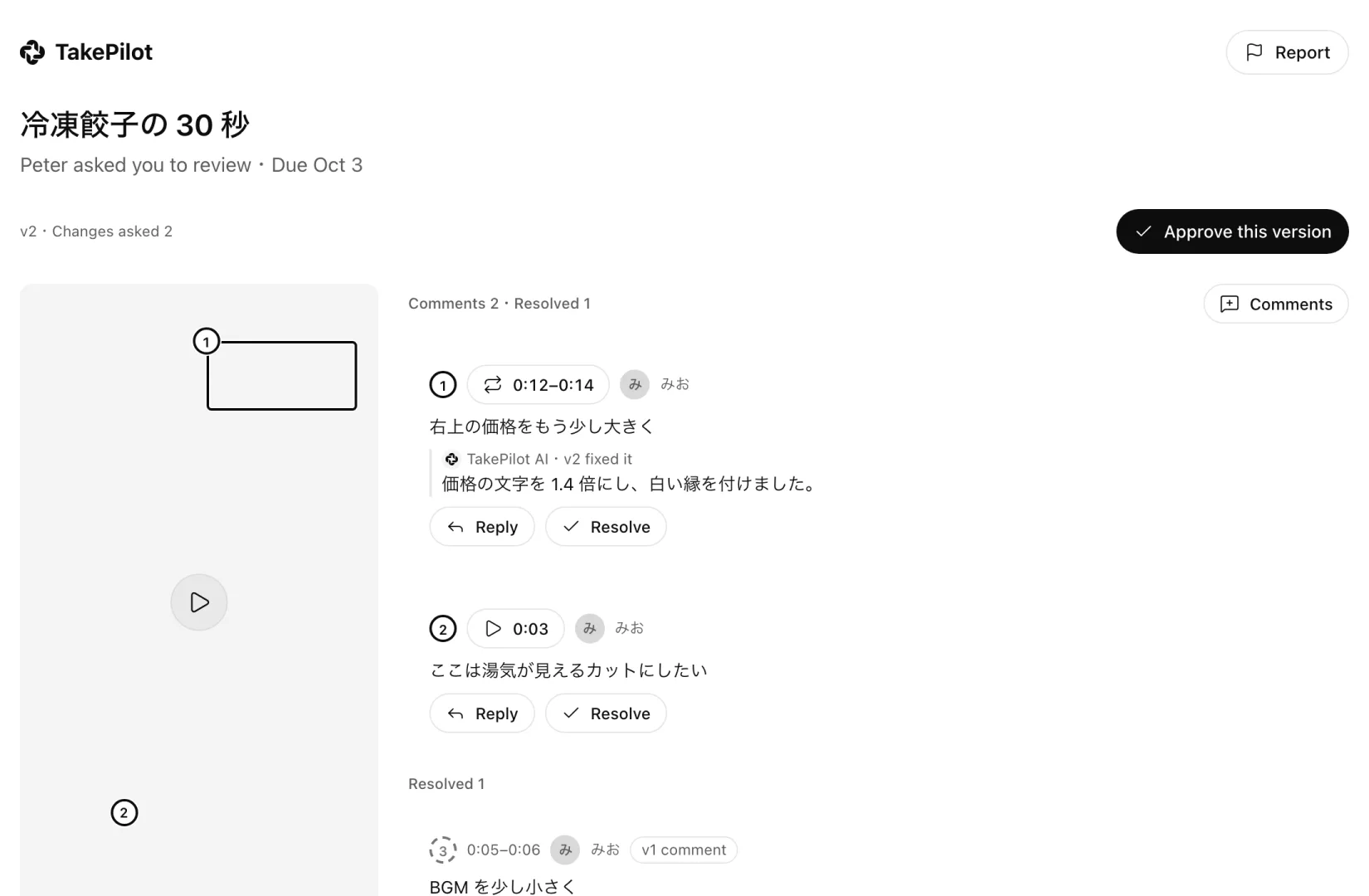
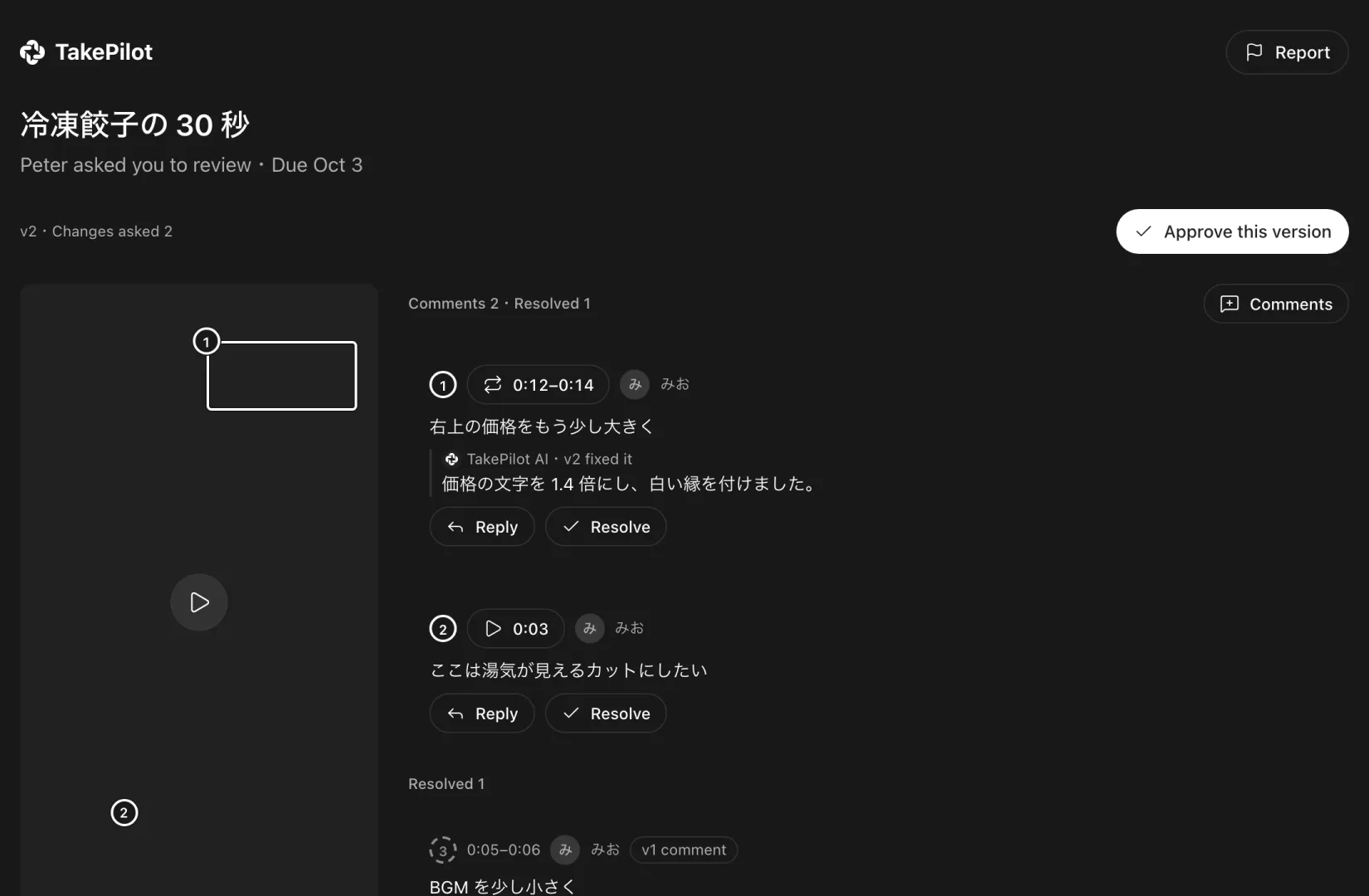
The person asked to review does this:
- Open the link in the invitation email and press "Start reviewing". Sign in with the invited email address. If they have no account, one is made now (free).
- Play the video and press on it where something should change. Write "What should change, and where" and send it. Drag the comment's end on the timeline to cover a longer stretch.
- Close a comment that was fixed with "Resolve". Use "Reply" to answer other comments.
- If this version is fine, press "Approve this version".
3. Fix from the comments
When comments arrive, "Review requests" in the left sidebar shows an unread count.
- Open the video in the "Review requests" list.
- Press copy in the "Prompt" box. The open comments have been turned into text for your agent.
- Paste the text into your AI agent.
Your agent reads the comments (get_review_comments) and changes only what they point at. Everything else stays. The fixed video goes into My files as a new version (Make videos with the plugin).
4. Send the next version
- When "Review requests" shows "New version", check the new version.
- Press "Request review again".
- In "Send this version", check the AI replies that go to the reviewers, then press "Send for review".
The reviewers get the new version. Comments on earlier versions stay. Reviewers resolve their own comments.
Statuses
| Status | Meaning |
|---|---|
| Waiting | Asked, no reply yet. Also after you send a new version for review |
| Replied | A comment or the like came in on a link you shared |
| Changes asked | Some comments are still open. The number is how many |
| Approved | A reviewer pressed "Approve this version" |
| Stopped | You stopped the review or the link. It stays in the list for 90 days |
The "Review requests" screen lists what you sent for review and the links you shared with "Share" in one list. "Filter" narrows it by status, reviewer, offering and period.
Cards in My files show the same states as "Awaiting review", "Changes requested" and "Approved" (See the review status).
Troubleshooting
Today's limit for review versions is reached. Press it again tomorrow.
You sent the most versions allowed for one day. Press it again tomorrow.
It expired or was taken back.
The invitation can no longer be used. Ask the person who asked you to invite you again.
Next steps
Updated