Workspace / Workspaces and organizations
Workspaces and organizations
On this page
Everything you make or register goes into a workspace. There are two kinds: "Personal", just for you, and an organization, for a team.
Workspaces
Each workspace has its own:
- My files: the videos, clips and images you made (Find videos in My files)
- Offerings and avatars: usable in any video in that workspace (Register avatars and offerings)
- Credits: what you make is paid from the current workspace's balance
| Personal | Organization | |
|---|---|---|
| Who uses it | Only you | The members you invite |
| How you pay | A plan or a one-off top-up | The organization's prepaid credits |
| AI agents | Yes | Not yet |
Videos made with the plugin go into your personal workspace.
Organizations
In an organization, members use the same files, offerings and avatars. Admins can see the videos members made and what they spent.
Create an organization
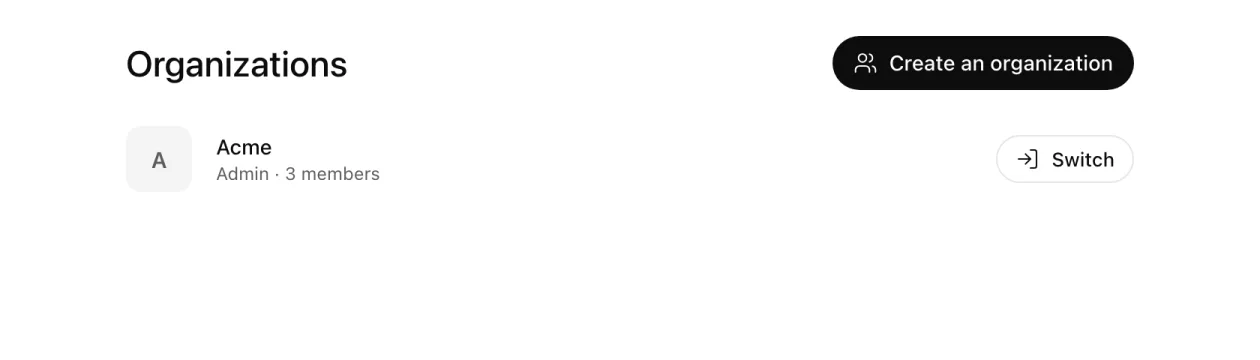
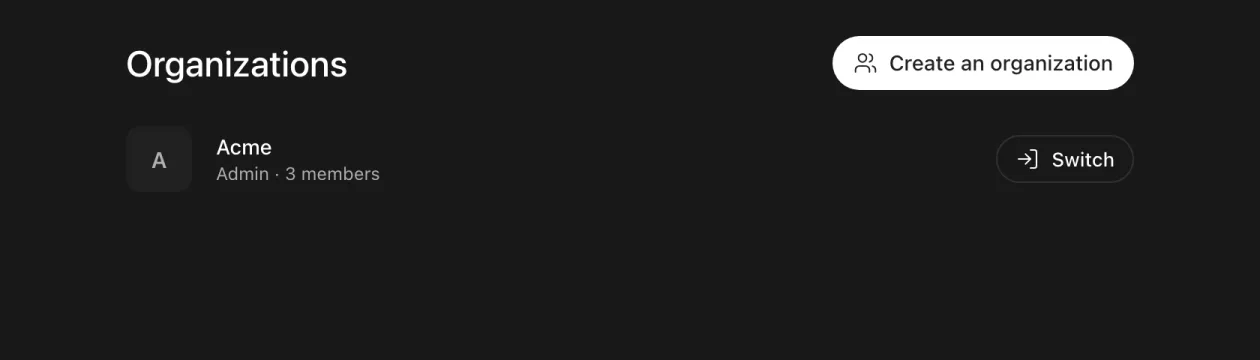
- Press your name at the bottom left and choose "Create or join an organization".
- Press "Create an organization" and enter a "Company or team name".
- Press "Create an organization".
You can use the organization once TakePilot approves it. Until then, the list shows "Pending approval". Whoever creates it becomes the owner.
Invite members
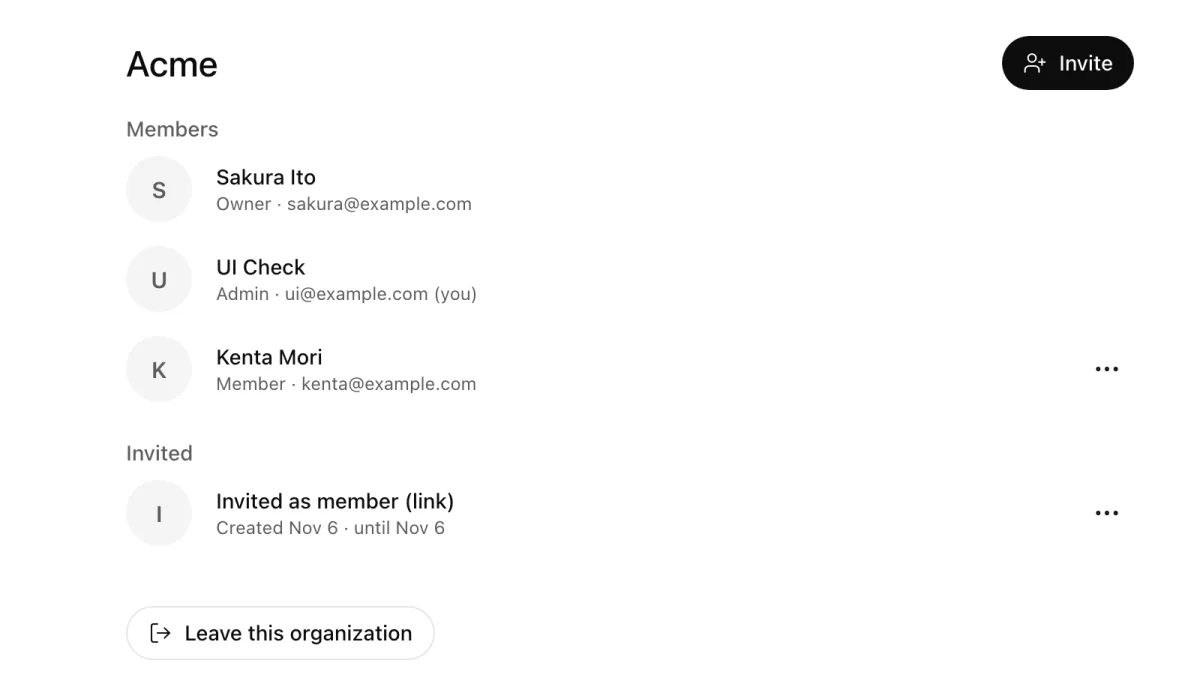
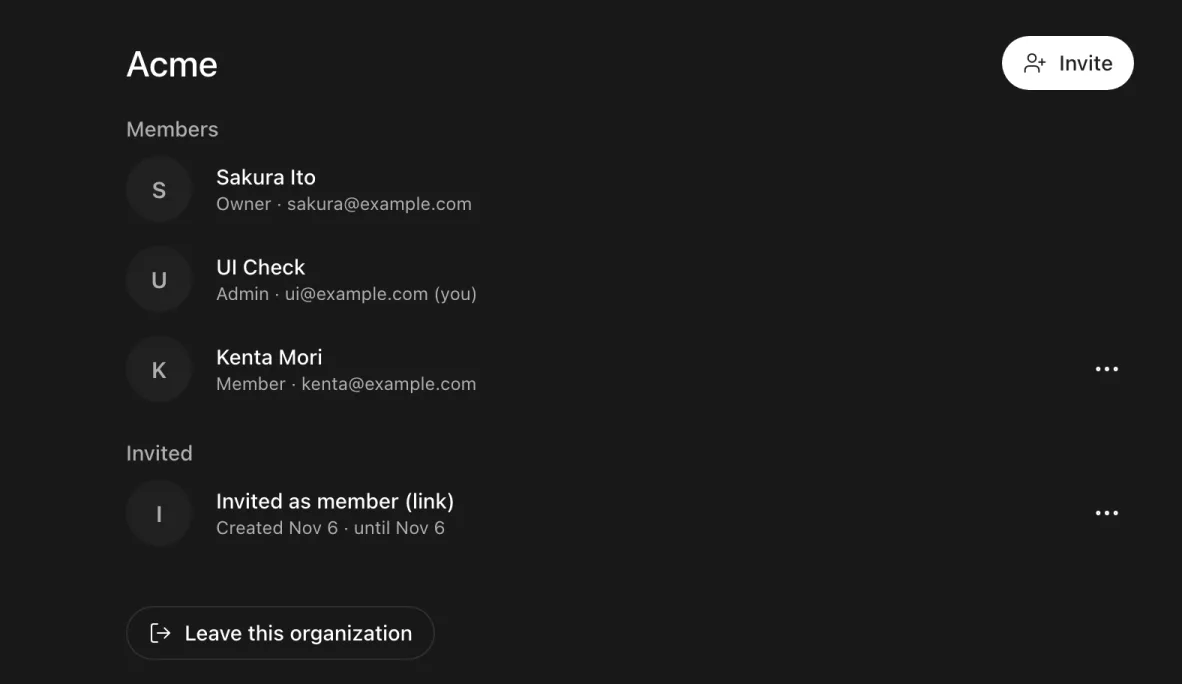
- On the organization's page, press "Invite".
- Enter the person's email address and pick a role (member or admin).
- Press "Create a link", copy the link and send it to the person.
When the person opens the link, they join the organization. Unused invites are listed under "Invited"; cancel one from its "…" menu.
Switch between personal and organization
Press your name at the bottom left → "Workspace" to switch between personal and an organization. "Switch" on the Organizations page works too. Where you are decides which files, offerings and avatars you see, and which balance pays.
Use AI agents in an organization
Members can make videos in the organization's workspace from their own AI agent (Claude Code and others). It is off at first.
- Open Settings on the organization admin screen (only owners and admins can).
- Turn on the "Make from AI agents" switch and confirm in the dialog.
Once it is on, when a member asks their agent to make something in the organization, it is paid from the organization's credits. Each member's own caps ($10 per call, $50 a day and so on) still apply, and the organization has its own daily cap on top (all members together, $50 by default).
- Lower the organization's daily cap: enter an amount on the same screen and press the button next to it. It takes effect at once.
- Raise it: enter a larger amount, then "Open the confirmation page" appears. Confirm there with a passkey or an email code.
- Stop: turn "Make from AI agents" off. The next generation is refused; generations already running finish.
- Who changed it and when is shown on the same screen.
If the organization has it off, the agent makes nothing and tells the member to ask an owner or admin. When the organization's credits run short, it tells them an owner or admin adds credits on the organization admin screen (members cannot buy).
Leave
Press "Leave this organization" at the bottom of the organization's page. After you leave, you can no longer see its files. The last owner can leave only by deleting the organization.
Next steps
Updated