Plugin / Make videos with the plugin
Make videos with the plugin
With the TakePilot plugin, you can ask the AI agent you already use for "a 15-second video of this offering". The agent writes the plan and shows an estimate; when you say OK, TakePilot's servers make the voice, images and clips and put them into one video.
Connect
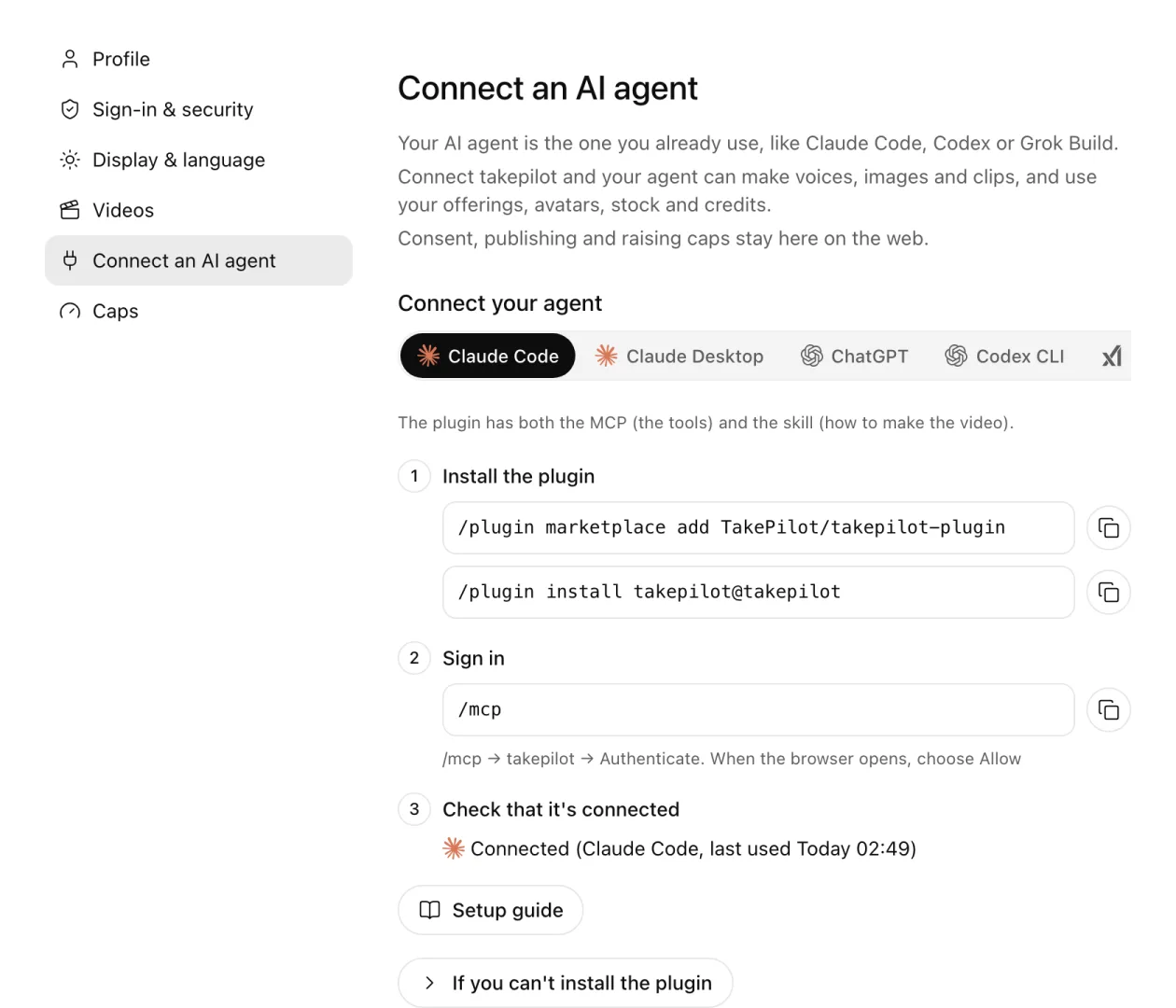
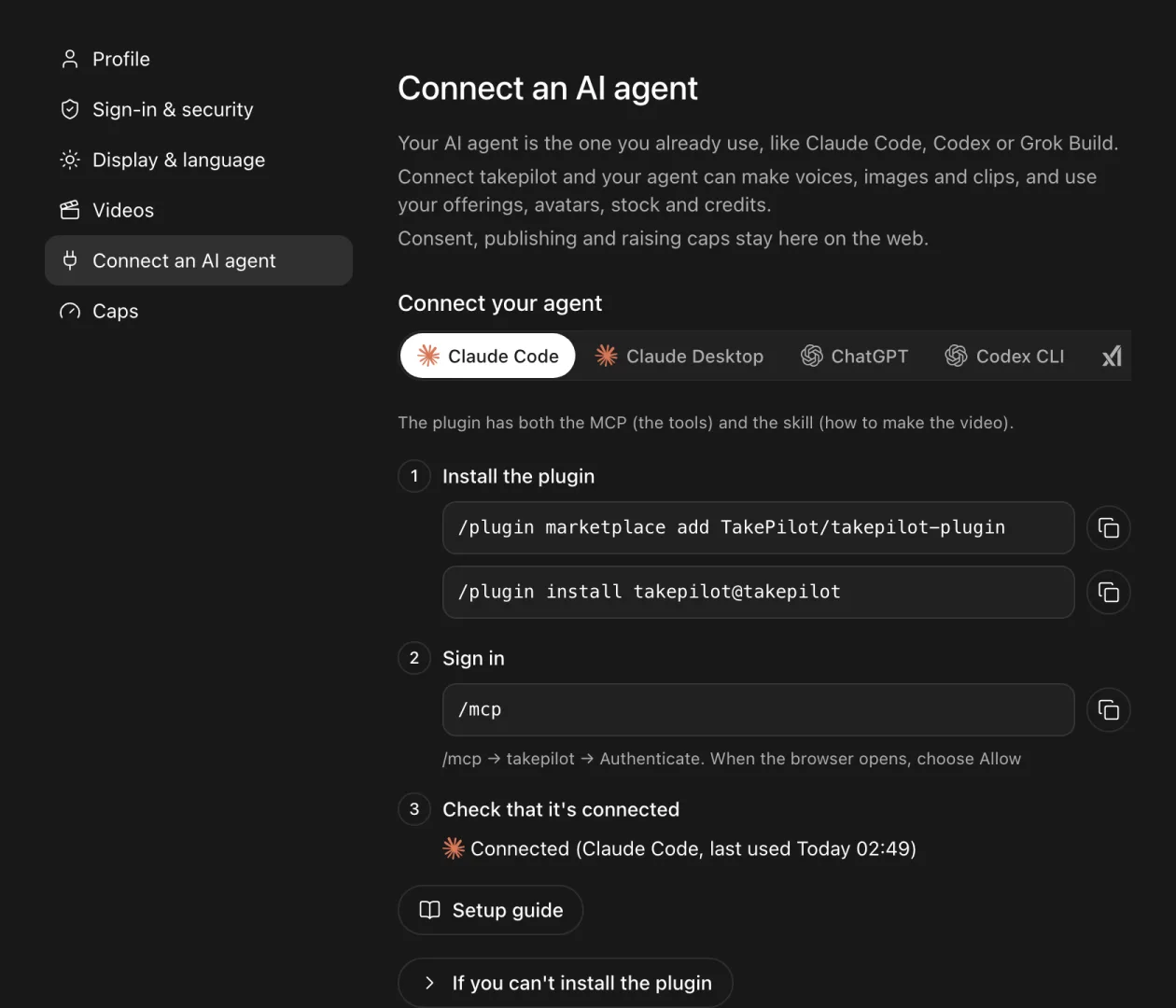
First create an account on the web (app.takepilot.ai) and add credits. Then open "Settings" → "Connect an AI agent" on the web and pick your agent's tab; the commands can be copied from there. The first time a tool is used, a browser opens: sign in to TakePilot and allow it.
| Agent | What you add |
|---|---|
| Claude Code | The plugin (2 commands) |
| Claude Desktop | The plugin zip (chat mode) |
| ChatGPT desktop app | A custom MCP server (no skills or commands; it reads how to make the video from get_playbook) |
| Codex CLI | The plugin (3 commands) |
| Grok Build | The plugin (1 command) |
| Other AI agents | The MCP server and the skill zip (steps) |
The MCP and the skill
Making videos from an agent takes two things: the MCP and the skill. The plugin gives you both.
| What it is | Without it | |
|---|---|---|
| MCP | The tools: make voice, images and clips, put them into one video, save it | The agent can't call TakePilot |
Skill (takepilot-ad) |
How to make the video: the brief, hook and appeal options, the NG-expression check, the estimate, checking the result | The agent can call the tools but doesn't have the steps |
| Plugin | The MCP, the skill and the commands, as one set |
If you only added the MCP URL, you are halfway there. Add the skill too.
Claude Code
/plugin marketplace add TakePilot/takepilot-plugin
/plugin install takepilot@takepilot
Open /mcp, choose takepilot and authenticate; press "Allow" when the browser opens. Then ask, for example, /takepilot:make a 30-second TikTok Shop video for a toner.
Claude Desktop
-
On the web's "Connect an AI agent" page, open the Claude Desktop tab and download the plugin zip. Do not unzip it.
-
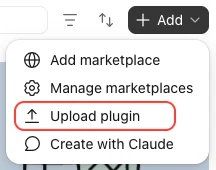
In Claude Desktop's chat mode, open Customize → Plugins → Add (top right) → Upload plugin.
-
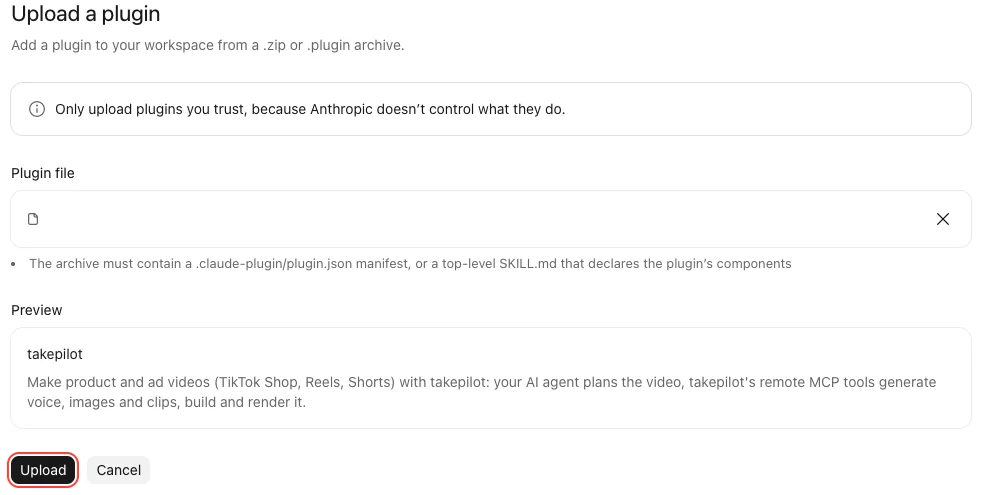
Choose the zip and press Upload.
-
On the plugin's Connectors tab, open the
takepilotrow.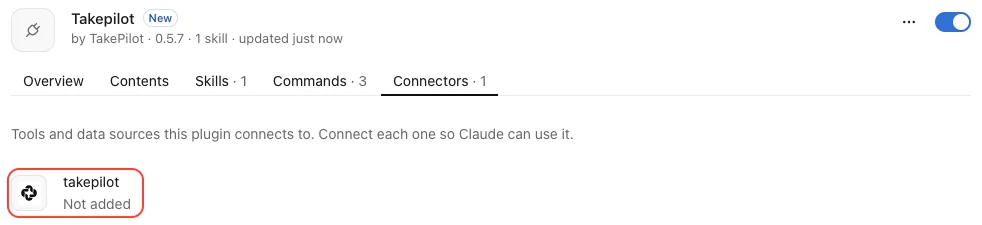
-
Press Connect.

-
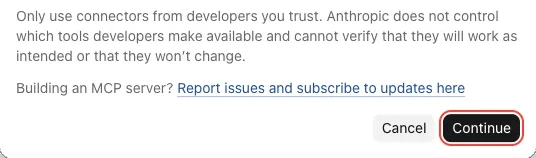
Add custom connector opens with the name and URL filled in. Press Continue.
-
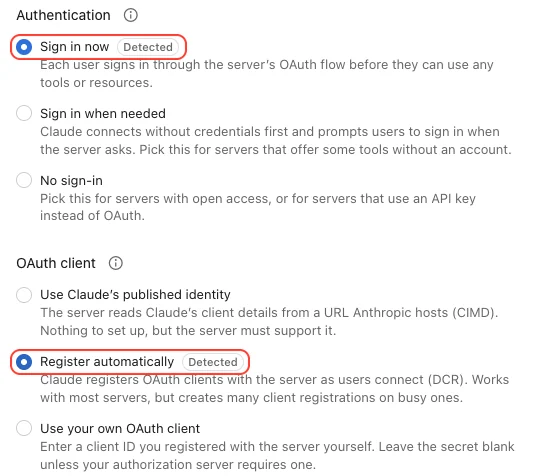
Keep Sign in now and Register automatically selected and press Add.
-
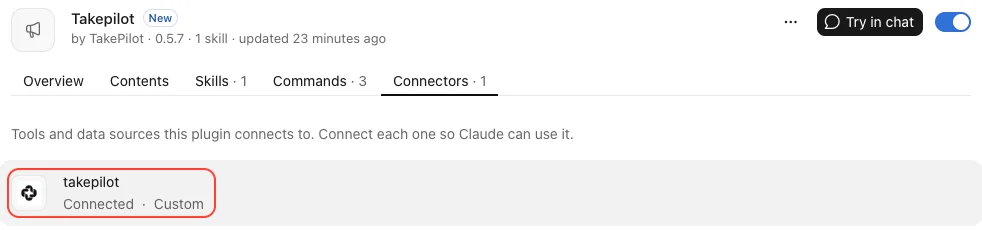
When the row shows Connect again, press it. In the browser press Continue connecting and allow TakePilot. Connected means you are done.
-
In a new chat, ask "Make a 30-second TikTok Shop video for a toner with takepilot".
- On Team and Enterprise, the organization's Owner adds the connector; then each person connects with their own account.
- Chat has nowhere to keep files, so finished videos come as download URLs.
- Pressing Connect in the Code tab can show "Couldn't start sign-in … different server URL". Press it in chat mode instead.
Fewer permission prompts
In Claude Desktop's chat, every call to a TakePilot tool asks for permission. Set the read-only tools to always allowed and you will be asked far less often.
- In Claude Desktop, open Customize → Connectors and choose
takepilot. - Under Tool permissions, set Read-only tools to Always allow.
- Leave Write/delete tools on Needs approval.
Read-only tools only look at your offerings, My Files and balance. They change nothing and spend no credits.
Keep the tools that spend credits (making voices, images and clips, building, rendering) on Needs approval. Before making anything, the agent shows the estimate and asks you to choose, in a multiple-choice question, whether to go ahead. Each call then asks for your permission, so credits never go without you knowing.
- The setting stays with the connector; you do not need to set it again in a new chat.
- On Team and Enterprise, limits set by the organization's Owner take precedence.
- The menu names follow Claude's connector help article.
ChatGPT desktop app
ChatGPT takes no plugin: connect it as a custom MCP server. You get TakePilot's tools and the guide for asking (get_playbook). Use Chat mode; Work mode shows no tools.
-
Copy the MCP server URL
https://api.takepilot.ai/v1/mcp. -
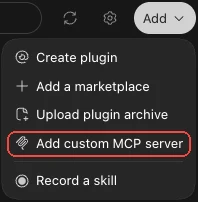
Open Plugins in the sidebar → Add (top right) → Add custom MCP server.
-
Enter
takepilotas Name and the URL as Server URL. Tick I understand and want to continue and press Create as a plugin. -
Press Connect, then sign in to TakePilot in the browser and allow it.
-
Choose Chat at the top, pick
@takepilotin the input box and ask "Call get_account and tell me my balance". If the balance comes back, it works.
ChatGPT can't take the skill, so when you ask for a video, add "read get_playbook first". If the tools look out of date, press Manage → Refresh tools.
Codex CLI
codex plugin marketplace add TakePilot/takepilot-plugin
codex plugin add takepilot@takepilot
codex mcp login takepilot
The Codex desktop app is not supported. On a shared computer, run codex mcp logout takepilot when you are done.
Grok Build
grok plugin install TakePilot/takepilot-plugin
Trust the plugin to load it. Then open /mcps, choose takepilot and sign in.
Other AI agents
Agents that cannot take a plugin get the MCP and the skill separately. The MCP alone only brings the tools, so carry on through step 2.
1. Connect the MCP
Add it as a remote MCP server.
| Item | Value |
|---|---|
| MCP server URL | https://api.takepilot.ai/v1/mcp |
| Transport | HTTP (streamable HTTP) |
| Sign-in | OAuth (sign in to TakePilot in the browser and allow) |
2. Add the skill
On the web's "Connect an AI agent" page, open the "Others" tab and download the skill zip.
| Your agent | How to add it |
|---|---|
| Has a screen for adding skills | Upload the zip as is |
| Reads skills from a folder | Unzip it and put takepilot-ad in that folder (see your agent's docs for where) |
| Can't take skills | Add "read get_playbook first" when you ask for a video |
3. Ask whether the skill is there
Ask your agent "can you use the takepilot-ad skill?". "Connected agents" on the web only shows the MCP connection, not whether the skill was added.
The skill changes as TakePilot updates. If you added it by hand, it doesn't update itself, so download and add it again from the same tab now and then.
Check the connection
Under "Connected agents" on the web's "Connect an AI agent" page, you see each agent's name and when it was last used. "Disconnect" stops that agent within 10 minutes.
How to ask
Include these five and the first try gets close.
| Include | Example |
|---|---|
| Offering | The name of a registered offering |
| Who it is for | People in their 20s, after work |
| The first 1–3 seconds | The sound of opening the box, close-up |
| One message | Not too sweet |
| How many versions | 3 hooks × 2 appeals |
A 15-second TikTok video of Forest Scent Eau de Parfum for women in their 20s, with Sakura talking. 3 different hooks
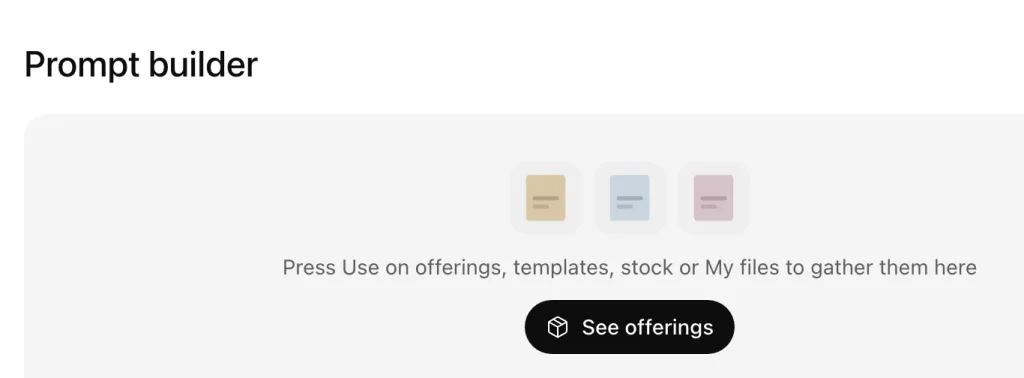
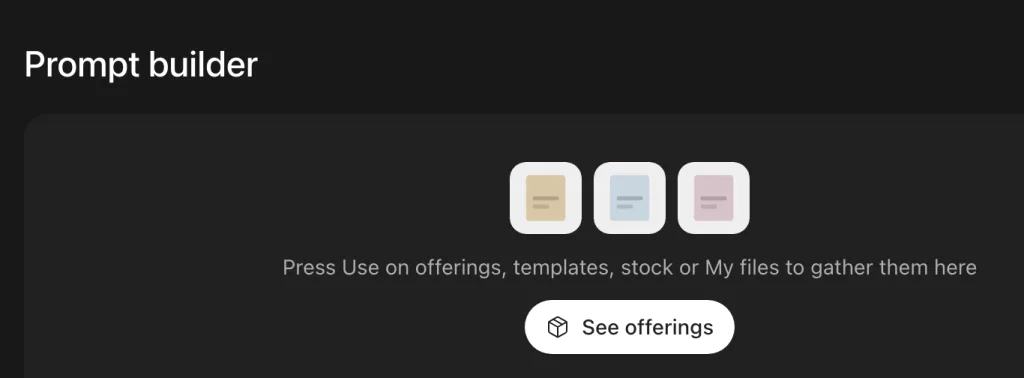
The web's "Prompt builder" collects what you pressed "Use" on (offerings, avatars, templates and more) and turns it into text to paste into your agent. To hand over just one thing, press "Prompt" on the page of a video, offering or other item: text pointing to it is copied, ready to paste.
What the agent does
- Registers offerings: give it a URL or photos and it creates the offering, with its kind and CVs (Kind and CV).
- Estimates: shows the cost and asks you before making anything. An estimate over the per-call limit is not made (Plugin costs and limits).
- Makes: asks TakePilot for voice, images and clips, and assembles them in a template.
- Checks: looks at stills and a short preview for text over faces or the offering.
- Makes versions: remakes only what changes and reuses shared clips.
- Fixes: reads review comments and fixes only the parts named, as a new version (Ask someone to review).
- Delivers: rendered videos land in My files (Find videos in My files).
Video models
Unless you name one, the agent picks for you: scenes MiniMax H3 Flash can make are made with Flash, and the rest (some scenes with people, for example) with MiniMax H3. Other models (Seedance, Kling, Luma, Higgsfield) are used only when you name them in your request; the agent tells you the price difference in one line.
Only on the web
| Task | Where |
|---|---|
| Publish to Community | "Community" |
| Buy credits; raise a cap | "Credits"; "Settings" → "Caps" |
Next steps
Updated