Offerings and avatars / Use Stock
Use Stock
On this page
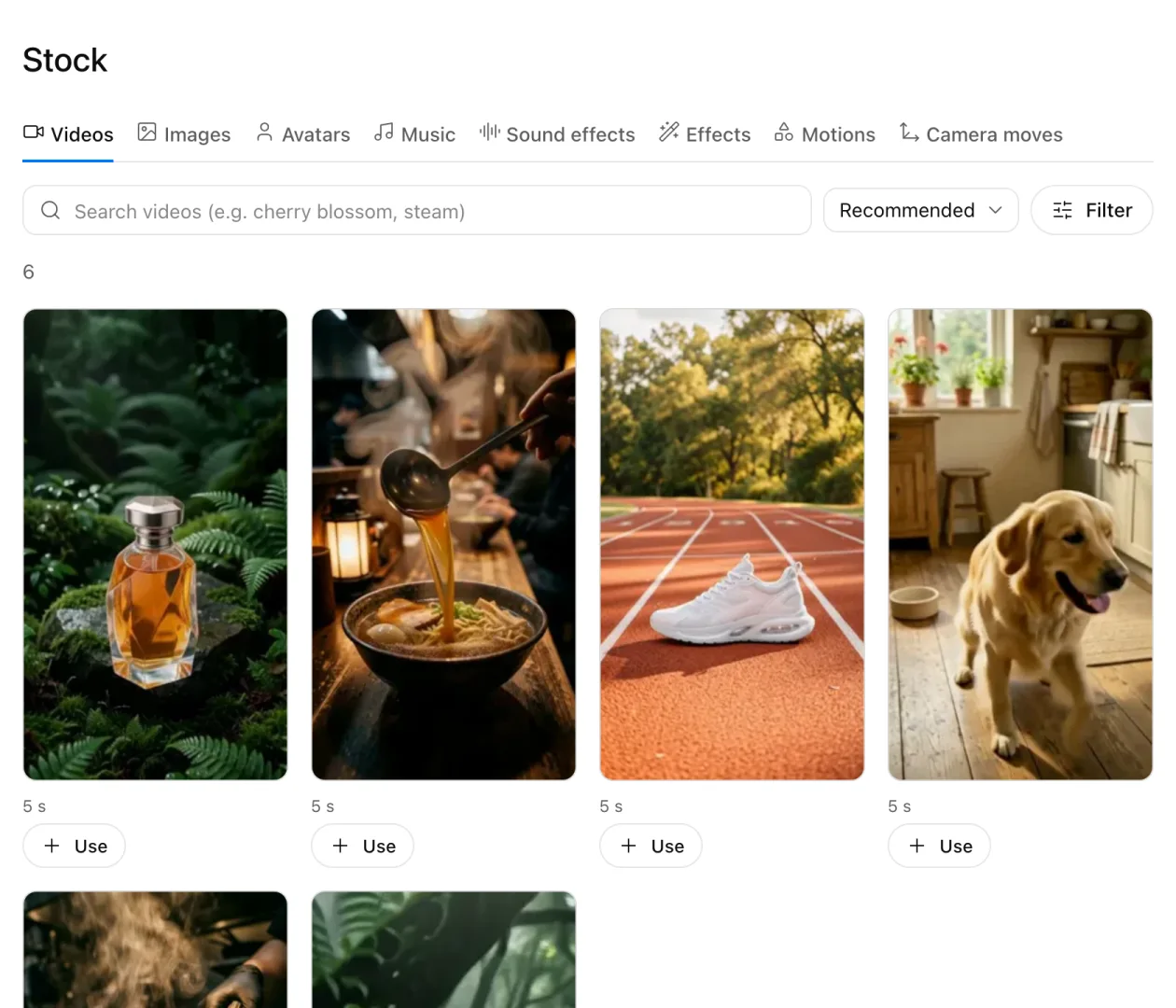
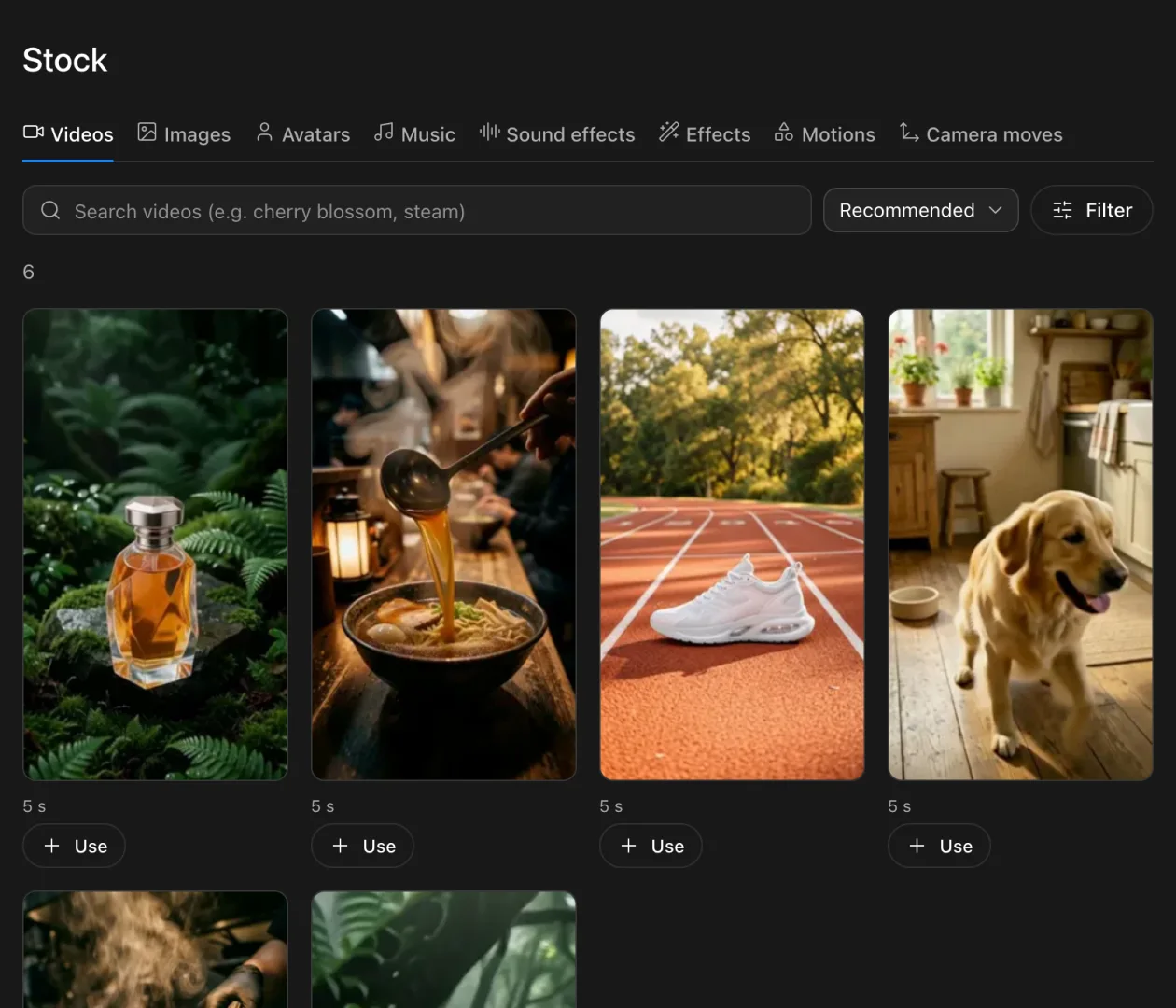
"Stock" holds sounds, footage and images you can add to a video. Press "Use" on the ones you like: they gather in the "Prompt builder", ready to hand to your agent.
Tabs
Open "Stock" in the left sidebar and pick a kind from the tabs at the top.
| Tab | What it holds |
|---|---|
| Videos | Short clips such as cherry blossoms or steam |
| Images | Stills for backgrounds and props |
| Avatars | Avatars made by TakePilot |
| Music | Music for a video |
| Sound effects | Short sounds such as applause or a thud |
| Effects | Speed lines, sparkles and other layers over the picture |
| Motions | Moving text and graphics, such as a price cut or a review |
| Camera moves | Push-ins, drone shots and other camera moves |
Official videos are made by TakePilot with AI. You can use them free in videos for the Japanese market. Official music is made with Google Lyria, and sound effects with ElevenLabs.
Search
- Type words in the field under the tabs (for videos, "cherry blossom" or "steam"; for sound effects, "applause").
- Use "Filter" to narrow the list. Official items are listed at first.
| Filter | Choices |
|---|---|
| Source | "All", "Official", "You", "Organizations" or "Community" |
| Favorites | "Favorites only" keeps just what you starred |
| Others | Orientation (vertical or horizontal), length, genre and so on. The Videos tab also has "Hands" |
You can play music and sound effects right there. Videos and motions play without sound when you point at them.
Use
- Press "Use" on what you want.
- Open "Prompt builder" in the sidebar. What you pressed gathers there and becomes text to paste into your agent (Make videos with the plugin).
An item's page also has these buttons.
| Button | What it does |
|---|---|
| Share | Copies only the item's address |
| Prompt | Copies text to paste into your AI agent. With it, the agent can use the item |
| Copy ID | On official videos and images, copies just the ID |
Avatars
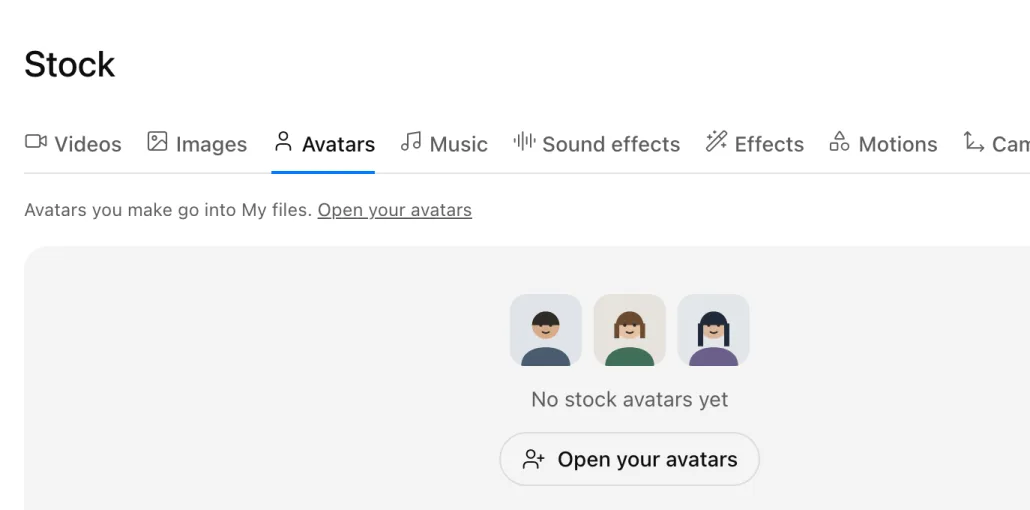
The Avatars tab lists avatars made by TakePilot. When there are none yet, it says "No stock avatars yet". Avatars you make go to "My files" › "Avatars", not here (Register avatars and offerings).
Next steps
Updated