Works and files / Use templates
Use templates
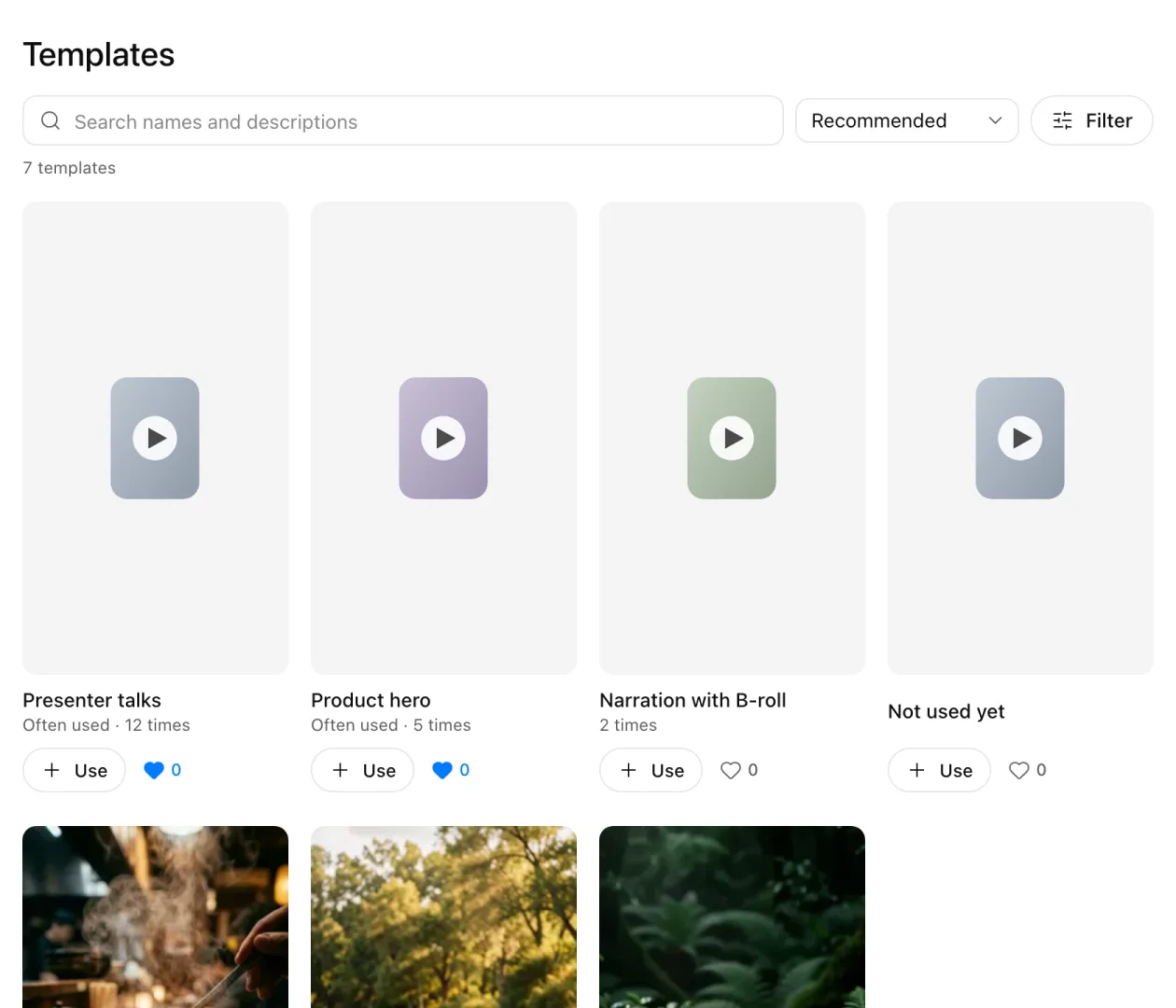
A template is a sample video plus how it is built: the number and length of cuts, captions, music, voice and so on. Keep the build and swap in your own offering and avatar. It is faster than planning the structure from scratch, and the results look consistent.
Choose
- Open "Templates" in the left sidebar.
- Hover over a card to play the sample without sound. On a phone, tap the card's picture.
- Press a card's name to play the sample large.
Open "Details" to see the following.
| Section | What it shows |
|---|---|
| Structure | Cuts (count and average length), captions, music, effects, narration, who is on screen |
| Replaceable elements | What you swap for your own, such as the offering's photo or the person. "Required" must be filled; "Optional" can stay as is |
| Media used | The music, sound effects and other media in the sample |
| How it's made | The steps it was made in |
| Made with this template | Community works made from this template |
Make
- Press "Use" on the card. The template goes into "Prompt builder".
- Press "Use" on the offering and avatar you want too.
- Copy the text "Prompt builder" makes and paste it into your AI agent.
"Make with it" on the sample's screen shows ready-to-paste text. Your agent fills the replaceable parts and builds the video. It shows an estimate first and starts once you say OK (Make videos with the plugin).
Likes and comments
- Like: press the heart next to "Use" on the card. Templates you like move toward the top of the list.
- Order: after your liked ones, templates are ordered by how often your workspace used them in the last 90 days. A card may show the count, such as "12 times".
- Comment: write in "Comments" on the sample's screen and send it (up to 500 characters). As in Community, you need an author name.
Templates that came from Community works show their creator's name. "See the original work" opens the work they came from.
Troubleshooting
This template is no longer available. Pick another one from the list.
The template was taken down. Pick another one from the list. Videos you already made stay.
Couldn't load the templates. Wait a little, then reload the page.
The connection dropped or the service is busy. Wait a little, then reload the page.
Next steps
Updated