Billing / Buy credits and change plans
Buy credits and change plans
On this page
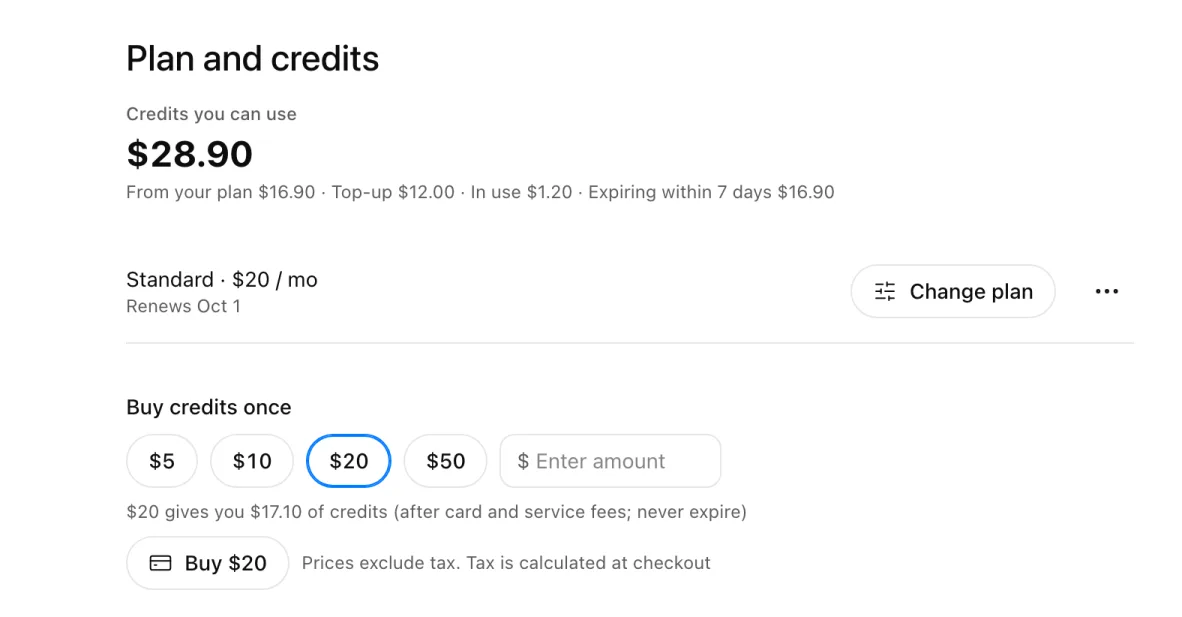
Your name at the bottom left → "Credits" opens "Plan and credits". In an organization workspace it is "Organization credits". Plans and what they give you are in Credits and plans.
Your balance
"Credits you can use" is what you can spend now. The breakdown is below it.
| Shown as | What it is |
|---|---|
| From your plan | What your plan adds each month |
| Top-up | What you bought. Never expires |
| Trial | Shown only when you were given some. It expires |
| In use | Held for things being made right now |
| Expiring within 7 days | Credits about to expire |
Buy credits once
- Under "Buy credits once", pick $5, $10, $20 or $50. For another amount, type a whole number from $5 to $500 in "Enter amount".
- Below, you see what you get (for example, "$20 gives you $20 of credits": what you pay comes in as is).
- Press "Buy (amount)" and pay on the checkout page.
Credits you buy never expire, and you can buy them without a plan.
Auto top-up
When your balance runs low, TakePilot buys more with your saved card, so you don't run out halfway.
- Turn on the "Auto top-up" switch. If you have no card yet, add one first, then turn the switch on again.
- Pick the two amounts in "When your balance drops below ○, buy ○".
- Pick a "Monthly limit". Nothing more than this is bought in a month.
If your balance is already below the threshold, saving buys at once. What was bought this month is shown under "Auto top-ups this month (before tax)". In an organization, only owners and admins can set it.
Subscribe, change or cancel a plan
| To | Do this |
|---|---|
| Subscribe | Pick one under "Plans" and press "Subscribe" |
| Change | Pick one in "Change plan" and press "Choose this plan". Upgrades apply now and you pay the difference; downgrades apply at the next renewal |
| Cancel | Choose "Cancel" from "…". The plan ends on the next renewal date, and you can use this period's credits until then. Changed your mind? Press "Keep my plan" |
| Change the card or see invoices | Open "Payment method and invoices" from "…" |
Prices exclude tax; tax is calculated at checkout. Organization workspaces have no plans and buy credits once only.
"We couldn't confirm your payment, so new generation is paused. Check your payment method."
This shows when a renewal payment fails. Check your card under "Payment method and invoices". Once the payment goes through, you can make things again.
See what you spent
Your name at the bottom left → "Usage history" shows daily use and what you used credits on, for a "Period" of 7, 30 or 90 days. Open a row for a breakdown by model, and "Recent use (one by one)" for each use.
Next steps
Updated